
Website security is no longer optional. Whether you run a business website, portfolio, blog, or eCommerce store, installing an SSL certificate is essential for protecting user data and improving trust.
Many website owners face a common situation:
✔The hosting server is in one GoDaddy account
✔The SSL certificate is purchased from another GoDaddy account
The good news is that you can still install and activate the SSL certificate without any issue.
In this guide, you will learn the complete step-by-step process to install an SSL certificate from another GoDaddy account on GoDaddy hosting or cPanel hosting.
An SSL (Secure Sockets Layer) certificate encrypts the connection between your website and visitors.
After SSL installation:
✔Your website shows https://
✔A secure padlock appears in the browser
✔Customer data becomes encrypted
✔Google trusts your website more
✔SEO performance improves
Without SSL, browsers may display:
Not Secure
which can reduce visitor trust and conversions.
Yes.
An SSL certificate is not permanently tied to the hosting account. You can:
✔Purchase SSL in one GoDaddy account
✔Install it on hosting located in another GoDaddy account
✔Use it on VPS, cPanel, or dedicated servers
The only important requirement is:
The CSR must be generated from the same server where the SSL will be installed.
Before beginning the installation process, make sure you have:
✔GoDaddy account where SSL is purchased
✔Hosting cPanel or server account
✔Domain DNS settings (if verification is required)
You should also know:
✔Domain name
✔Hosting login credentials
✔Email access for SSL verification
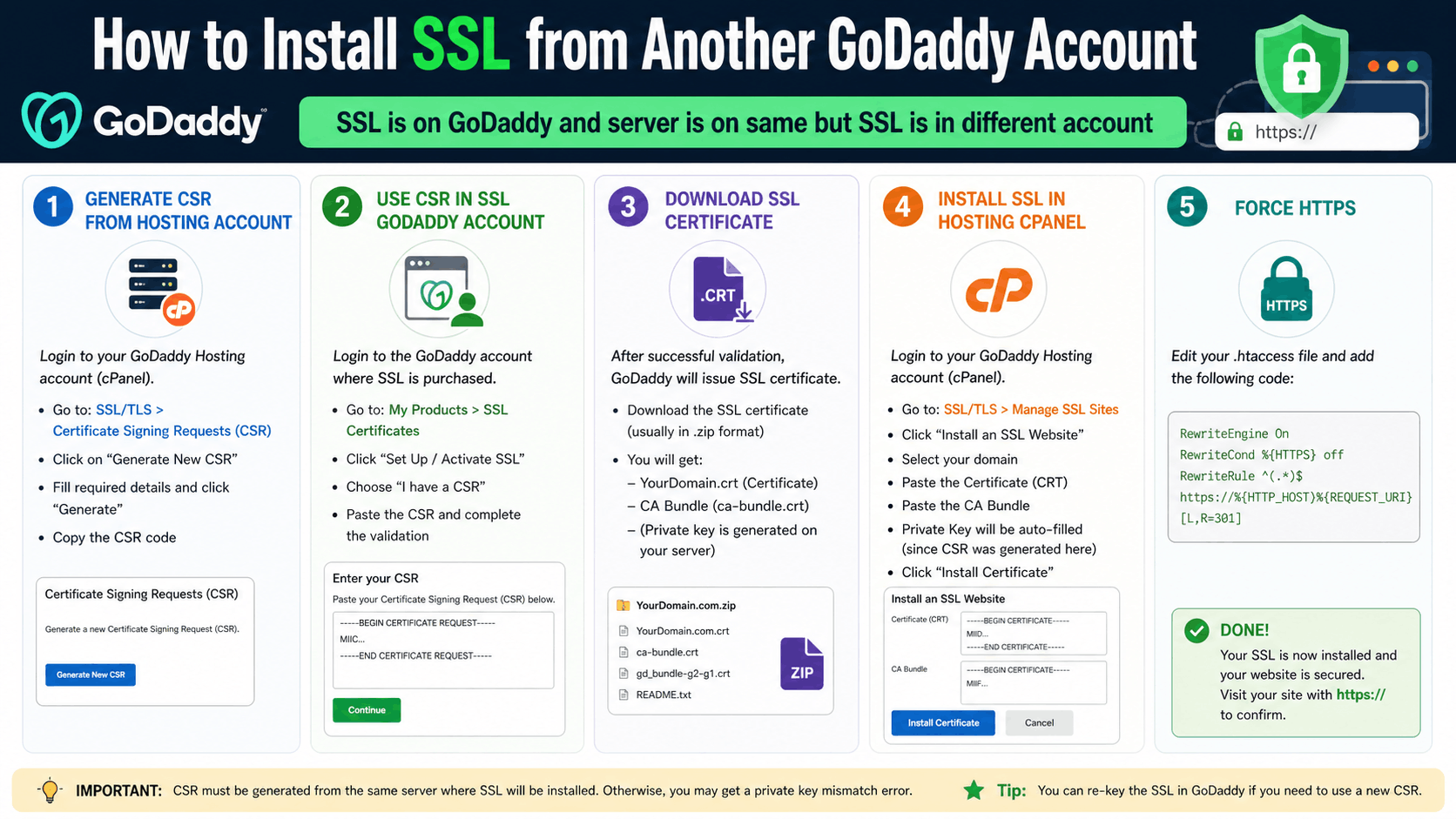
The first step is generating a CSR (Certificate Signing Request).
This creates:
✔CSR code
✔Private Key
The private key remains stored on the hosting server.
Login to your hosting cPanel.
Navigate to:
cPanel → SSL/TLS → Certificate Signing Requests (CSR)
Click:
Generate New CSR
Fill in the required details:
✔Domain Name
✔Company Name
✔City
✔State
✔Country
✔Email Address
Then click:
Generate
Now copy the generated CSR code.
It usually looks like this:
-----BEGIN CERTIFICATE REQUEST-----
XXXXX
-----END CERTIFICATE REQUEST-----
Keep this code safe.
Now login to the GoDaddy account where the SSL certificate was purchased.
Go to:
My Products → SSL Certificates
Click:
Manage
Then select:
Set Up / Activate
Paste the CSR generated from your hosting server.
Complete the verification process.
Depending on the SSL type, verification may happen through:
✔Email verification
✔DNS verification
✔File upload verification
After successful validation, GoDaddy will issue the SSL certificate.
Once the SSL certificate is issued, download the certificate package.
The package usually contains:
✔.crt certificate file
✔CA Bundle
✔Intermediate certificates
Download the ZIP file and extract it on your computer.
Now return to your hosting cPanel.
Go to:
SSL/TLS → Manage SSL Sites
Choose your domain.
Paste:
Paste the certificate content from the .crt file.
Usually auto-detected if CSR was generated on the same server.
Paste the CA Bundle content.
Finally click:
Install Certificate
Your SSL is now installed successfully.
Even after SSL installation, some websites still open using HTTP.
To force HTTPS, add this code inside your .htaccess file:
RewriteEngine On
RewriteCond %{HTTPS} off
RewriteRule ^(.*)$ https://%{HTTP_HOST}%{REQUEST_URI} [L,R=301]
Save the file.
Now every visitor will automatically redirect to the secure HTTPS version.
After installation:
Visit your website:
https://yourdomain.com
Check for:
✔Secure padlock icon
✔HTTPS URL
✔No security warnings
You can also use online SSL checker tools to verify installation.
This happens when the CSR was generated on a different server.
Generate a new CSR from the correct hosting server and re-key the SSL certificate.
Some website files still load through HTTP.
Update:
✔Image URLs
✔CSS URLs
✔JavaScript URLs
to HTTPS.
Sometimes SSL activation takes time due to DNS propagation.
Wait for a few minutes or clear browser cache.
If your hosting uses cPanel, you may already have free AutoSSL available.
Check:
cPanel → SSL/TLS Status
Then click:
Run AutoSSL
For many websites, free SSL works perfectly fine.
Installing SSL provides several important advantages:
Protects customer and website data through encryption.
Google prefers secure HTTPS websites in search rankings.
Visitors trust websites with secure padlock icons.
Modern browsers warn users when websites are not secure.
Installing an SSL certificate from another GoDaddy account is completely possible and straightforward when done correctly.
The most important part is generating the CSR from the same server where the SSL will be installed.
Once installed, your website becomes more secure, trustworthy, and SEO-friendly.
If you manage multiple GoDaddy accounts for clients or businesses, this method is extremely useful for handling SSL certificates efficiently.
Yes, as long as you have access to the hosting server and generate the CSR from that server.
No. SSL certificates can be installed on different servers and hosting accounts.
You may face a private key mismatch error during installation.
Some GoDaddy hosting plans include free AutoSSL through cPanel.
Yes. HTTPS is a Google ranking factor and improves website trust.
Part of what makes us the Website Designer expert team that we are is our ability to remain agile and adapt to industries of all kinds.




















© Copyright RDS WEB SOLUTIONS- Web Designing Company Noida,Delhi,India. 2017-2026. All rights reserved | Terms & Condition
Disclaimer: All prices are for reference only. The final cost depends on your exact requirements, features, design preferences, and project complexity. Customizations or additional functionality may increase pricing. Final quotation will be shared after detailed discussion.